 Pavilion Arc
Getting started · Expense review
SpendWise
Less busywork. More breathing room.
SpendWise helps a manager review staff expenses. Each claim sits next to its receipt and the policy checks, and every decision is saved with a reason.
How the work flows
Every task in SpendWise moves through the same stages.
- 1Capture
- 2Match
- 3Check policy
- 4Decide
- 5Export
Before you begin
Open SpendWise, press Open workspace, and keep this page open beside it.
- A computer or phoneA phone lets you try the receipt camera.
- The sample filesA card statement and two receipts.
- About 10 minutesNo payment is ever made.
Step by step
Follow the steps in order. Each one sets up the next. Select a screenshot to see it full size.
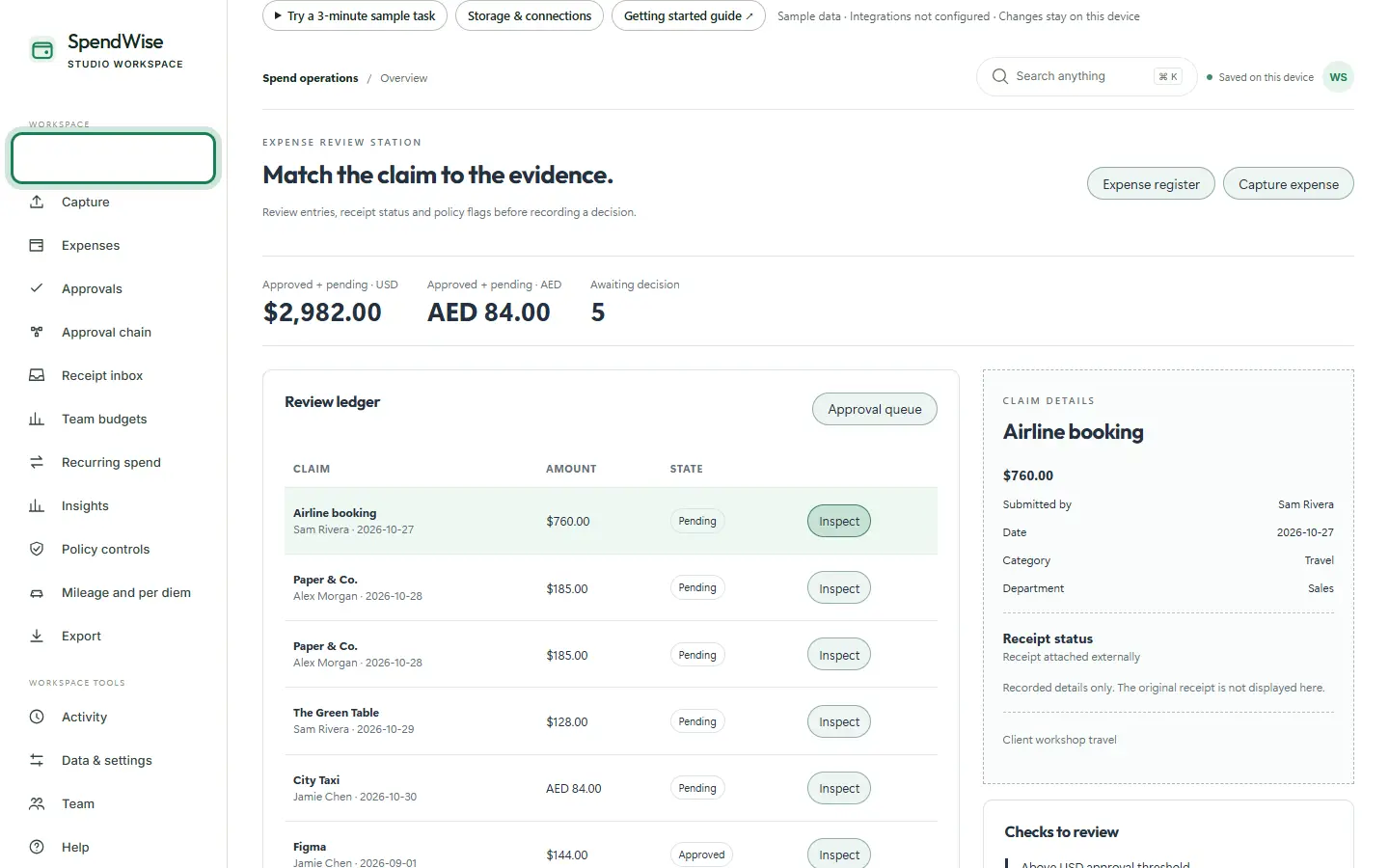
Step 1: See what needs review
Overview shows totals for each currency and the claims waiting for a decision.
The ring shows where to look or what to press. Step 2: Capture expenses
Open Capture and type your name under Claiming as. Drop in
01_card-statement-october.csv, pick the lines and press Import. Then drop in both receipt PDFs and press Add all ready.SpendWise reads the shop, date, amount and category from each receipt.
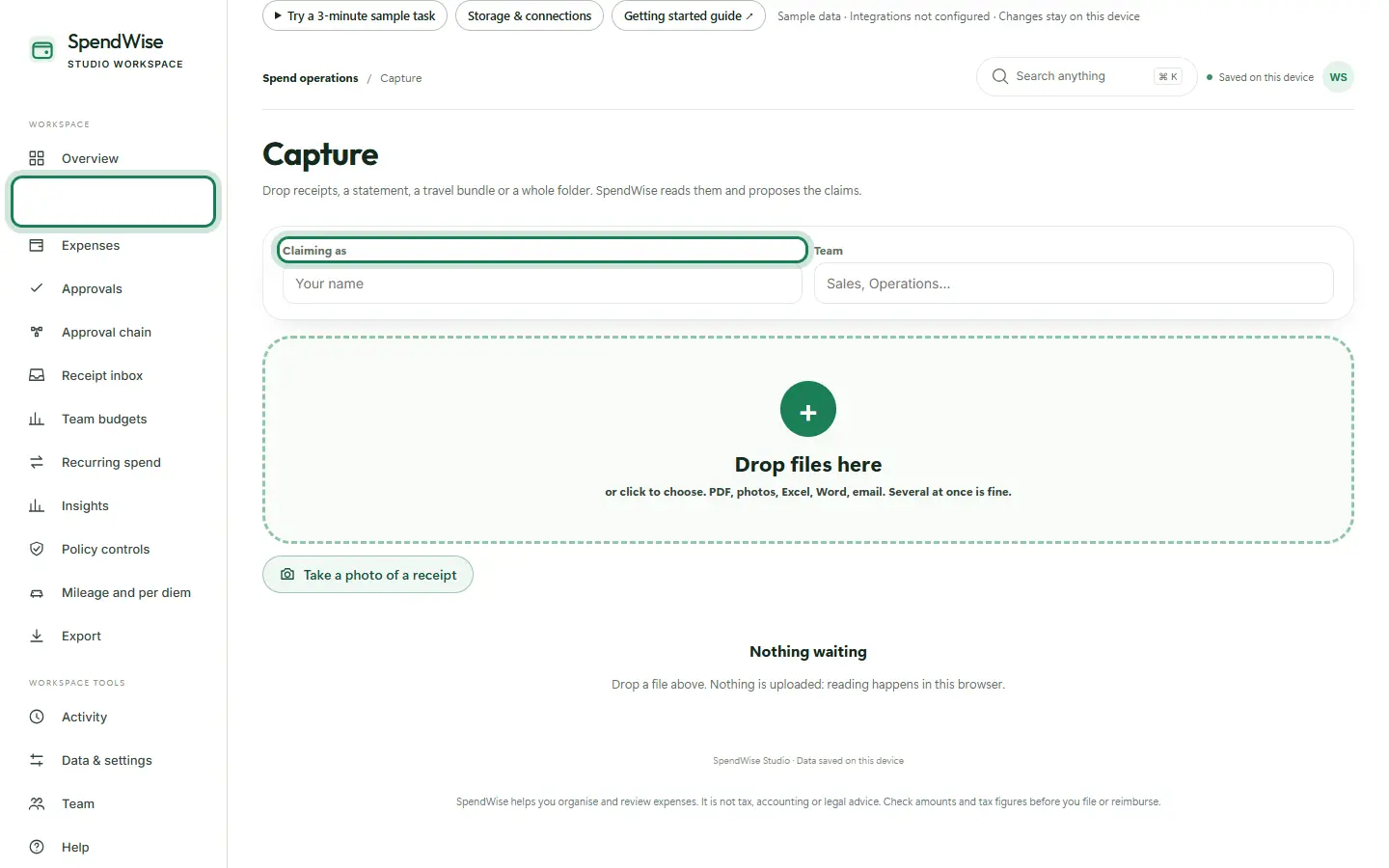
The ring shows where to look or what to press. Step 3: Or snap a receipt
On a phone, press Take a photo of a receipt to use the camera. The photo is read the same way as an uploaded file.
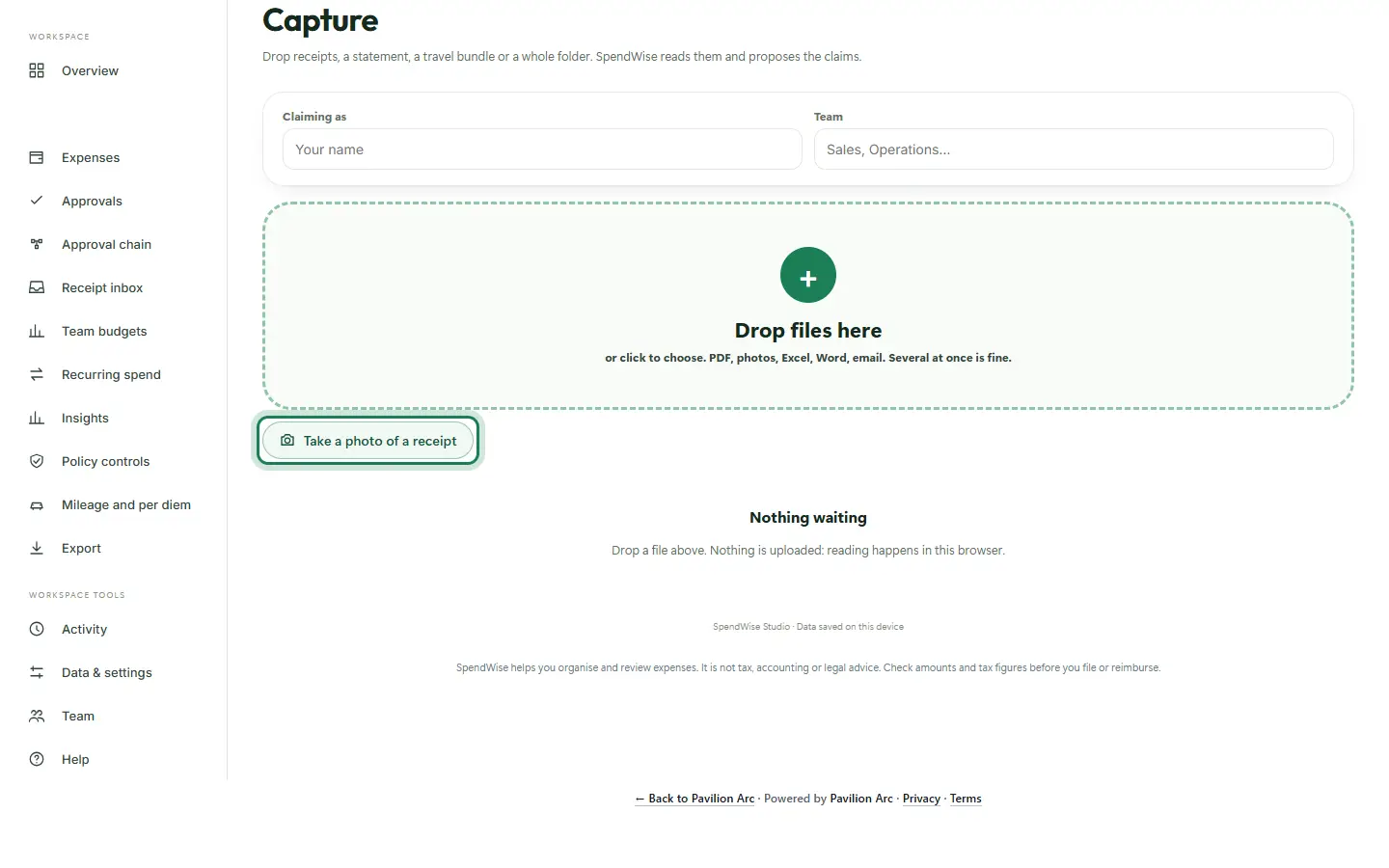
The ring shows where to look or what to press. Step 4: Check the register
Expenses lists every claim with its status and receipt, in one place.
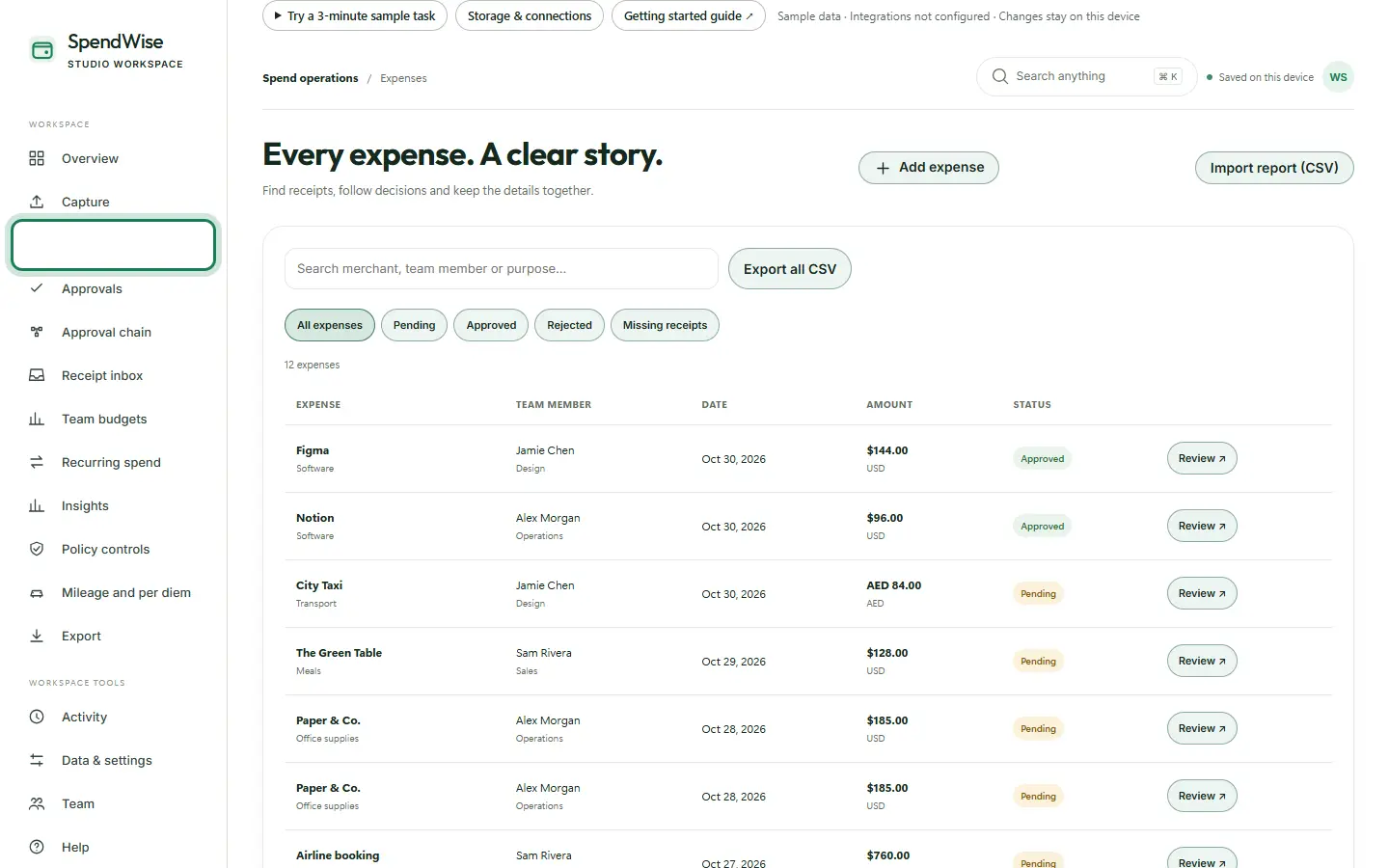
The ring shows where to look or what to press. Step 5: Decide with context
Open Approvals. The sample receipts match two card lines, so they are flagged Possible duplicate. That is on purpose. Read the warning, enter the reviewer’s name and a reason, then record the decision.
Every decision keeps its reason, so it is easy to explain later.
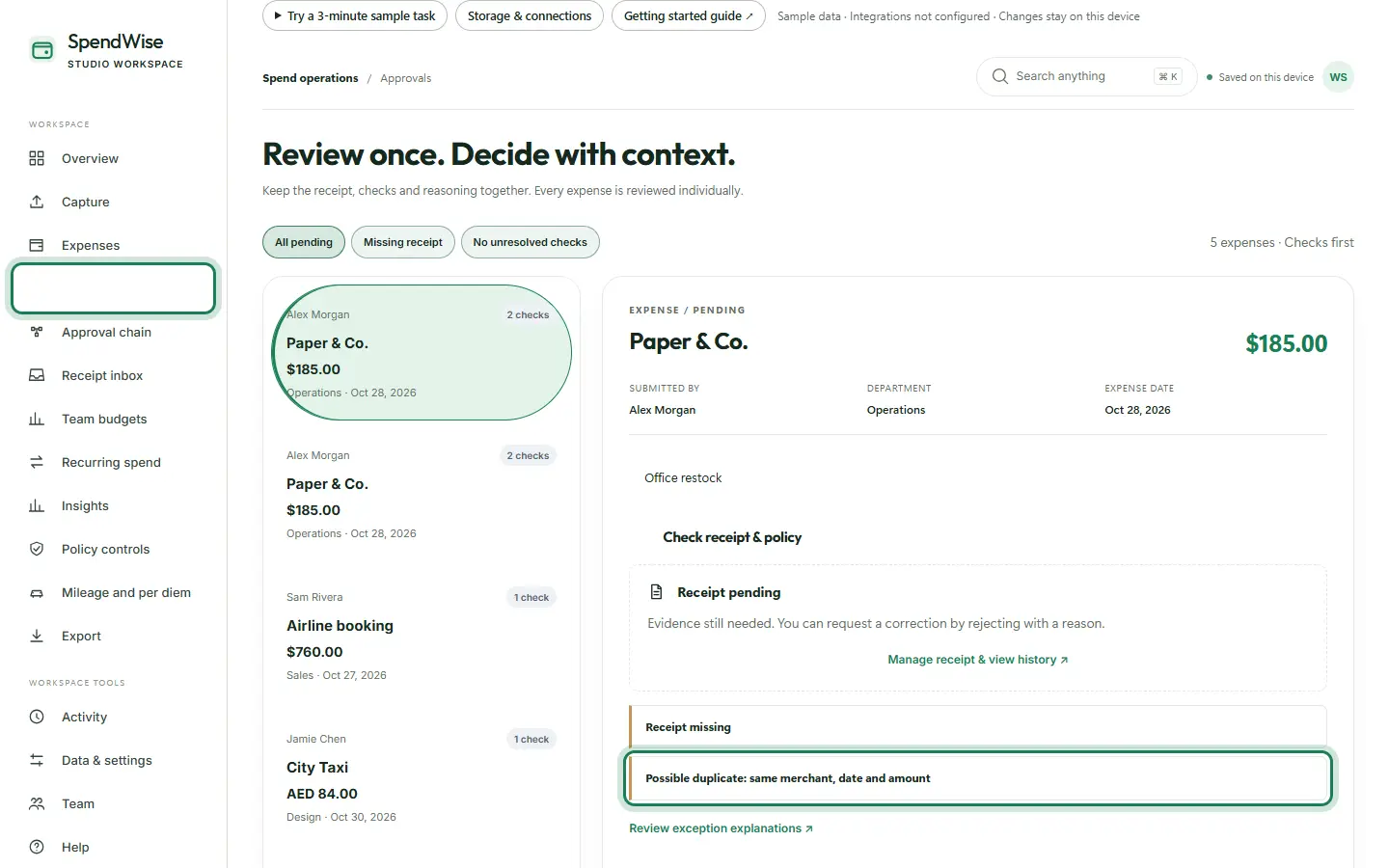
The ring shows where to look or what to press. Step 6: Watch team budgets
Team budgets shows spending against each team’s budget, so overspending is visible early.
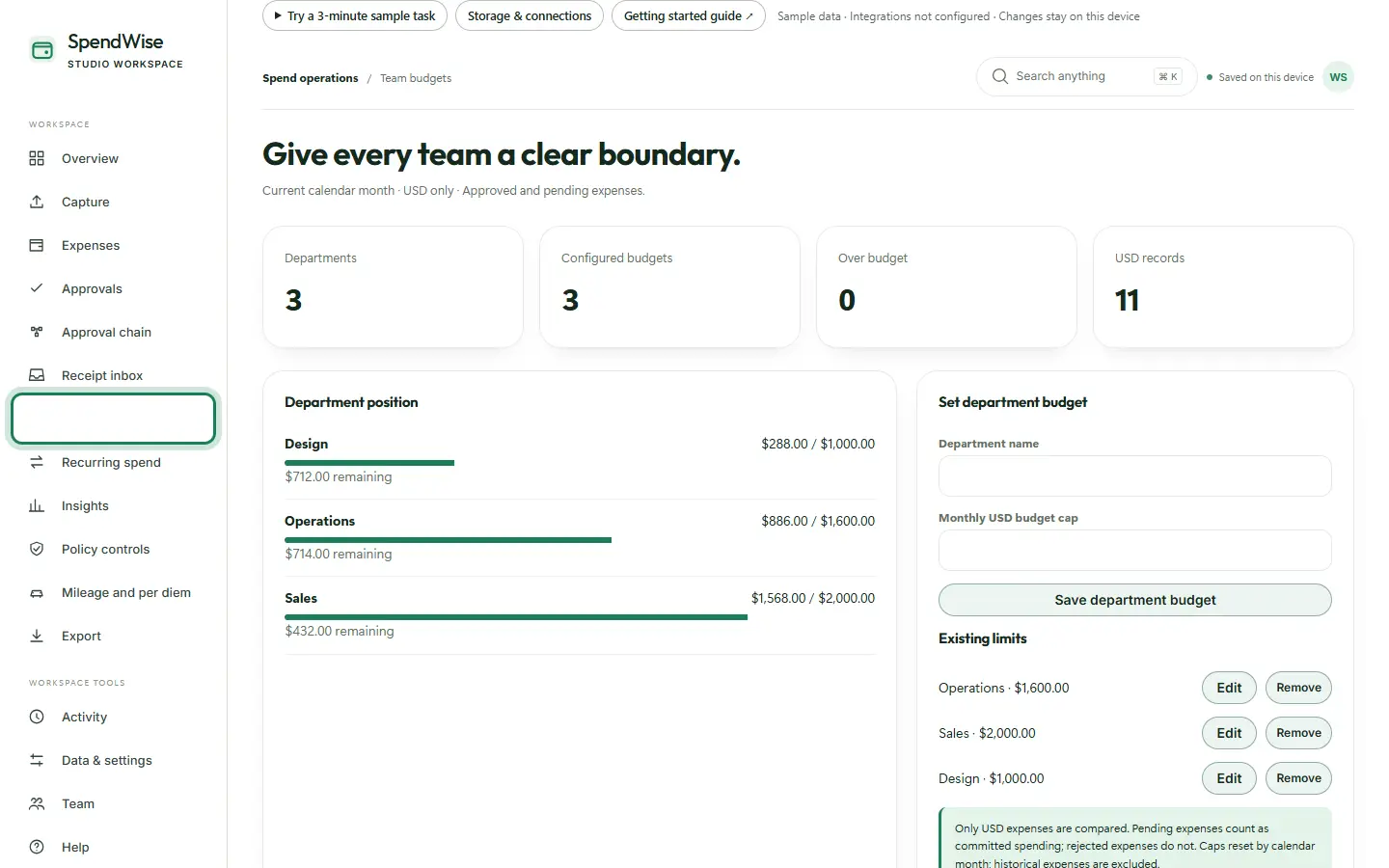
The ring shows where to look or what to press.
What to notice
Problems are flagged before you decide, and every decision keeps its reason.
Other guides
The same steps-and-screenshots format for every Pavilion Arc product.