 Pavilion Arc
Getting started · Client document collection
Chasely
Client chasing, handled.
Chasely helps an accounting firm collect documents from clients, such as bank statements, receipts and payroll reports, without chasing them by email.
How the work flows
Every task in Chasely moves through the same stages.
- 1Request
- 2Follow up
- 3Receive and check
- 4Done
Before you begin
Open Chasely, press Open workspace, and keep this page open beside it.
- A computer or phoneAny up-to-date browser works.
- The sample filesOne client list, downloaded from the sample task.
- About 10 minutesEverything uses made-up clients.
Step by step
Follow the steps in order. Each one sets up the next. Select a screenshot to see it full size.
Step 1: Start on Home
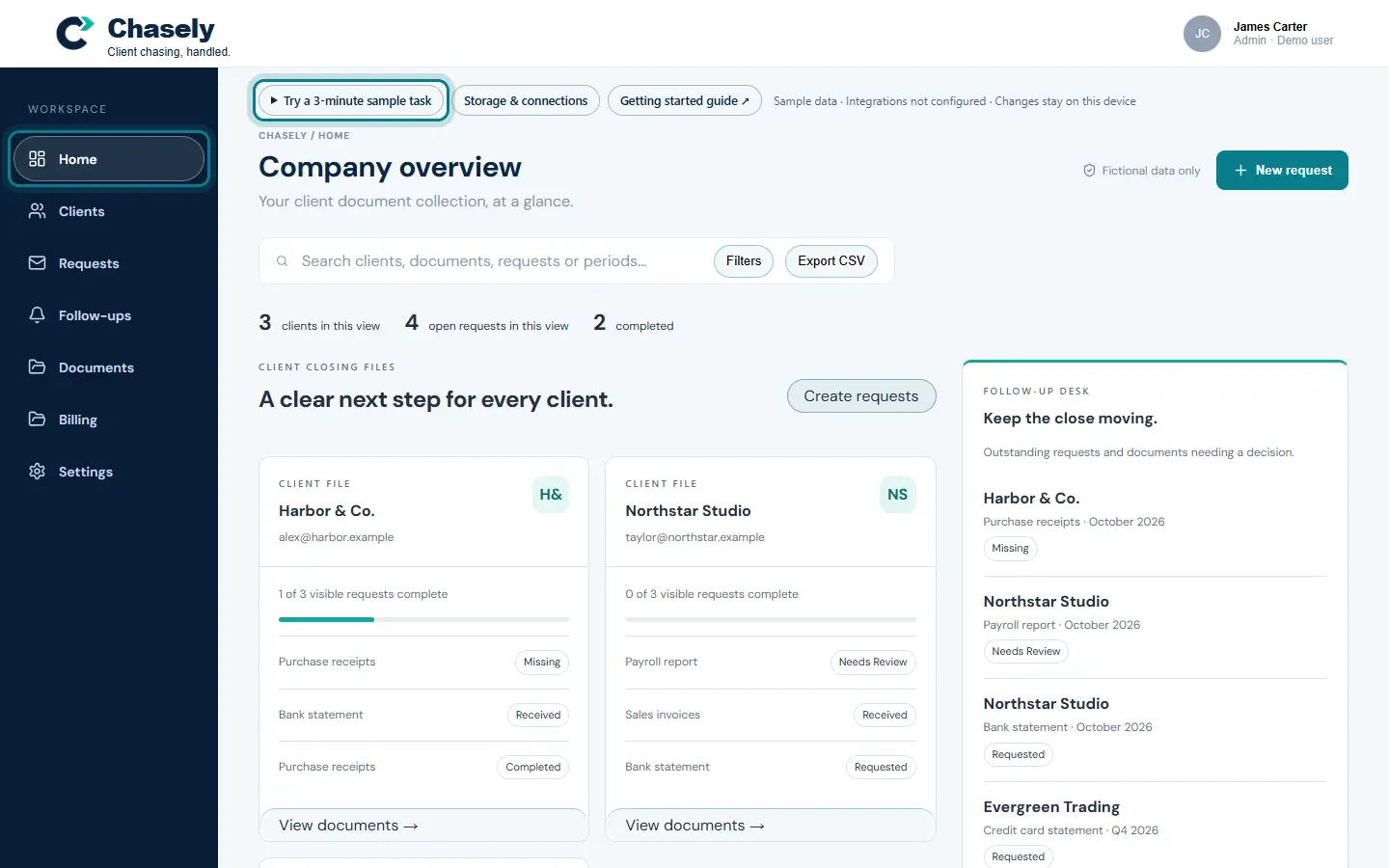
Home shows every client and the documents they still owe you, so you always know the next step.
Press Try a 3-minute sample task whenever you want a short guided version of this page.
The ring shows where to look or what to press. Step 2: Download the sample files
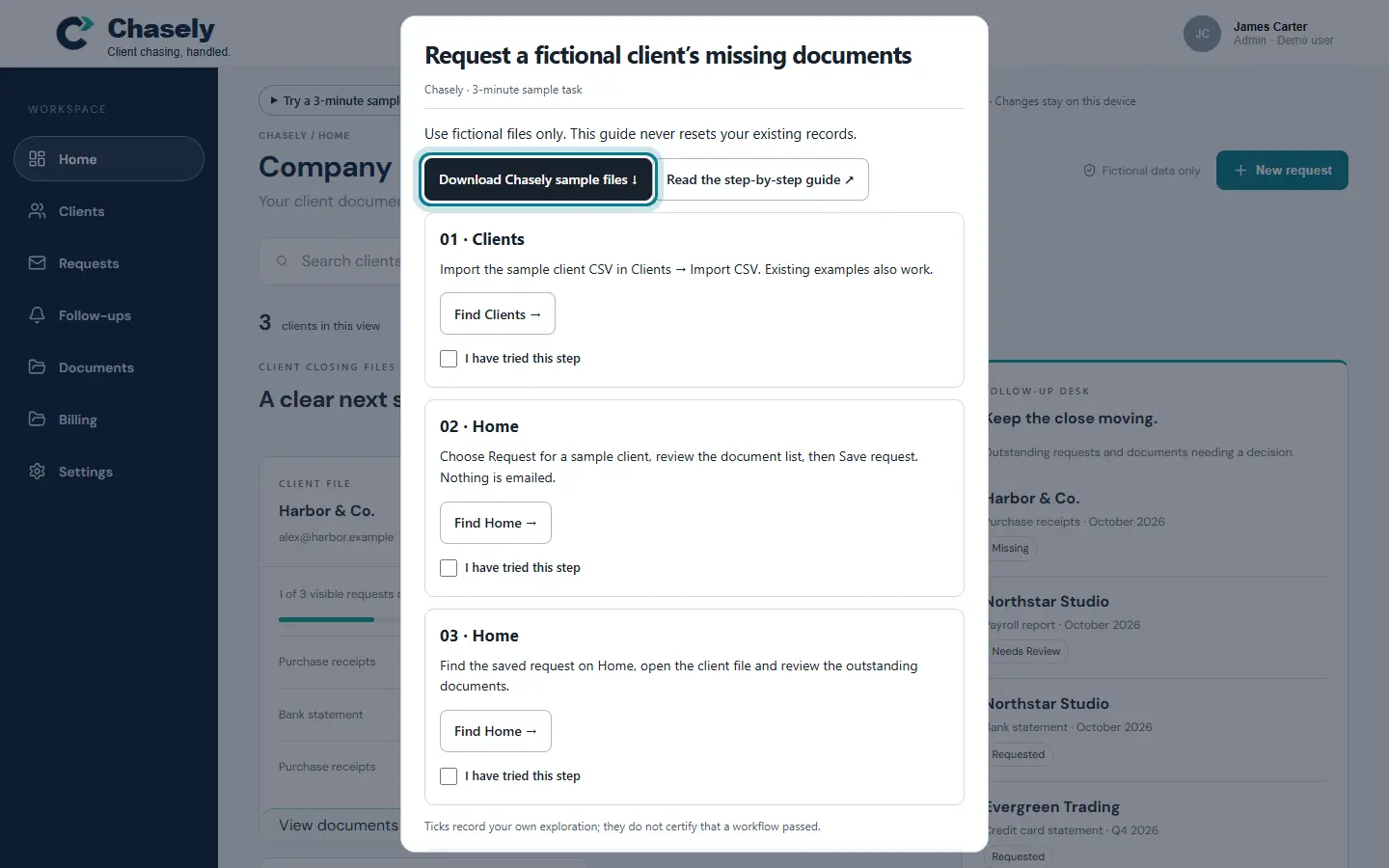
In the sample task, press Download Chasely sample files. You get a small client list to import. Every name in it is made up.
The ring shows where to look or what to press. Step 3: Import your clients
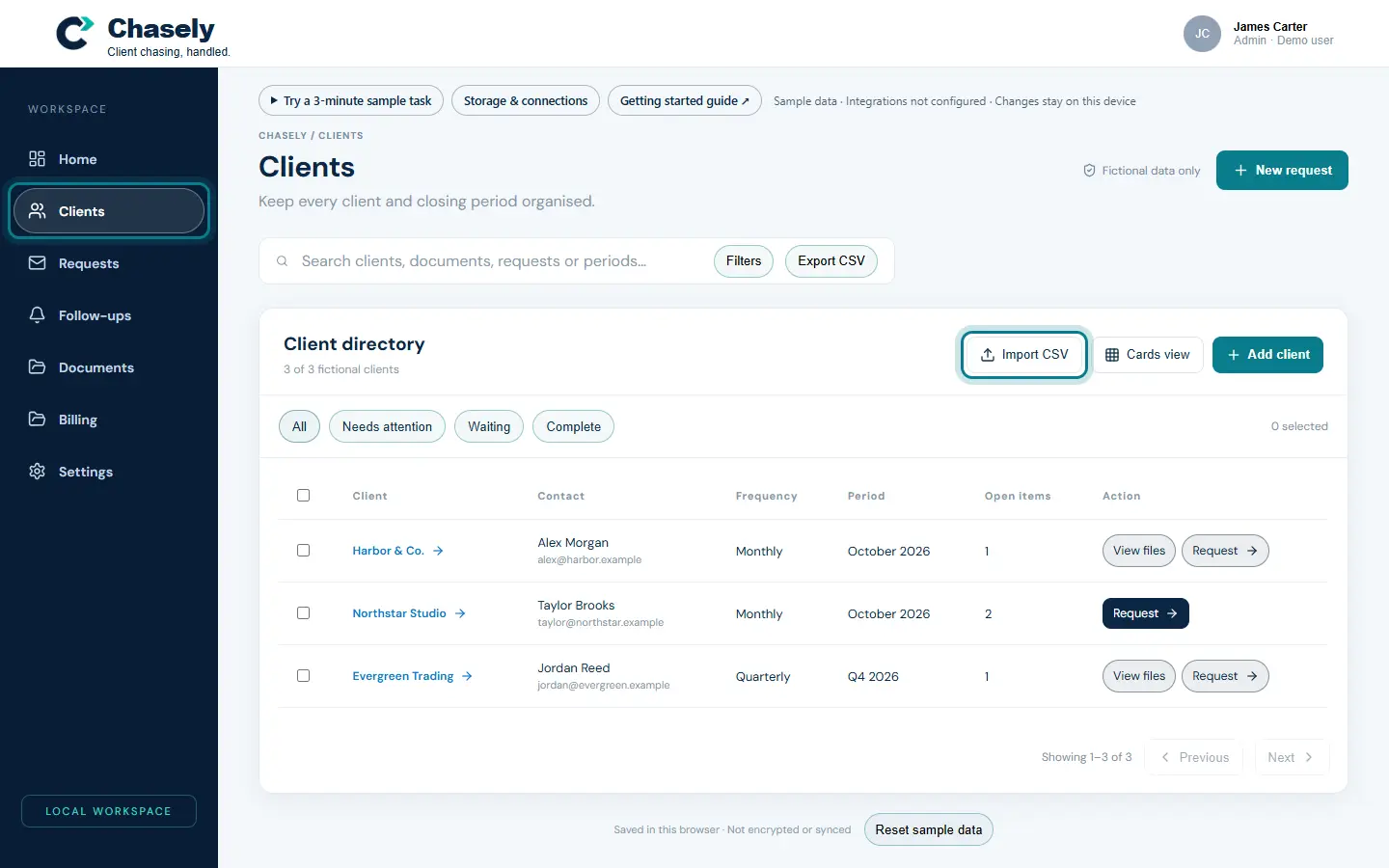
Open Clients and press Import CSV. Choose
01_client-import.csv. The new clients appear in the client directory.You can also add a client by hand with Add client.
The ring shows where to look or what to press. Step 4: Request documents
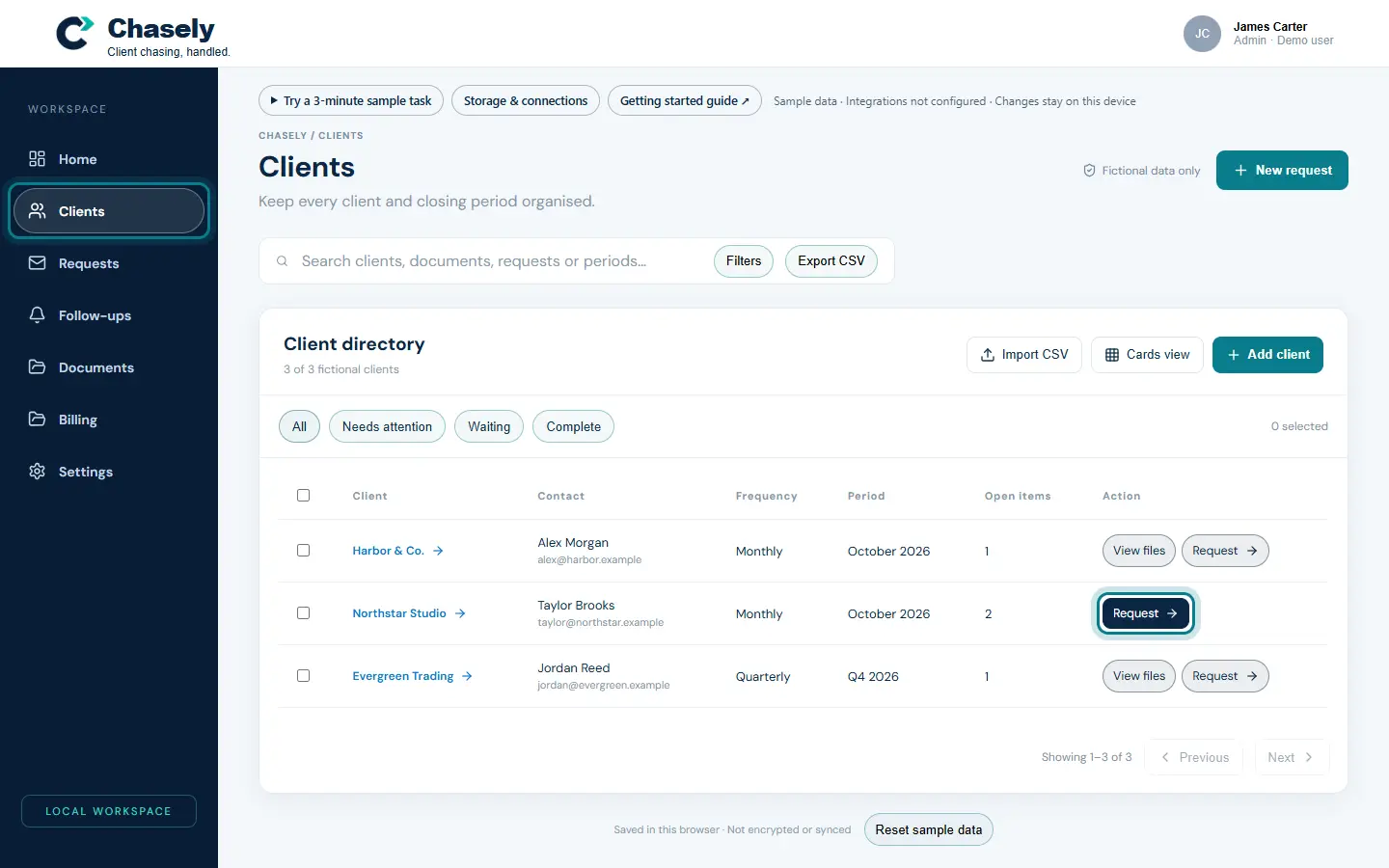
Press Request next to a client. Check the list of documents and the pre-written email, then press Save request. The request now appears on Home.
Nothing is emailed from the demo. Requests are saved as drafts.
The ring shows where to look or what to press. Step 5: Follow up on time
Open Follow-ups to see who needs a reminder today, who is due soon, and which reminders are already scheduled.
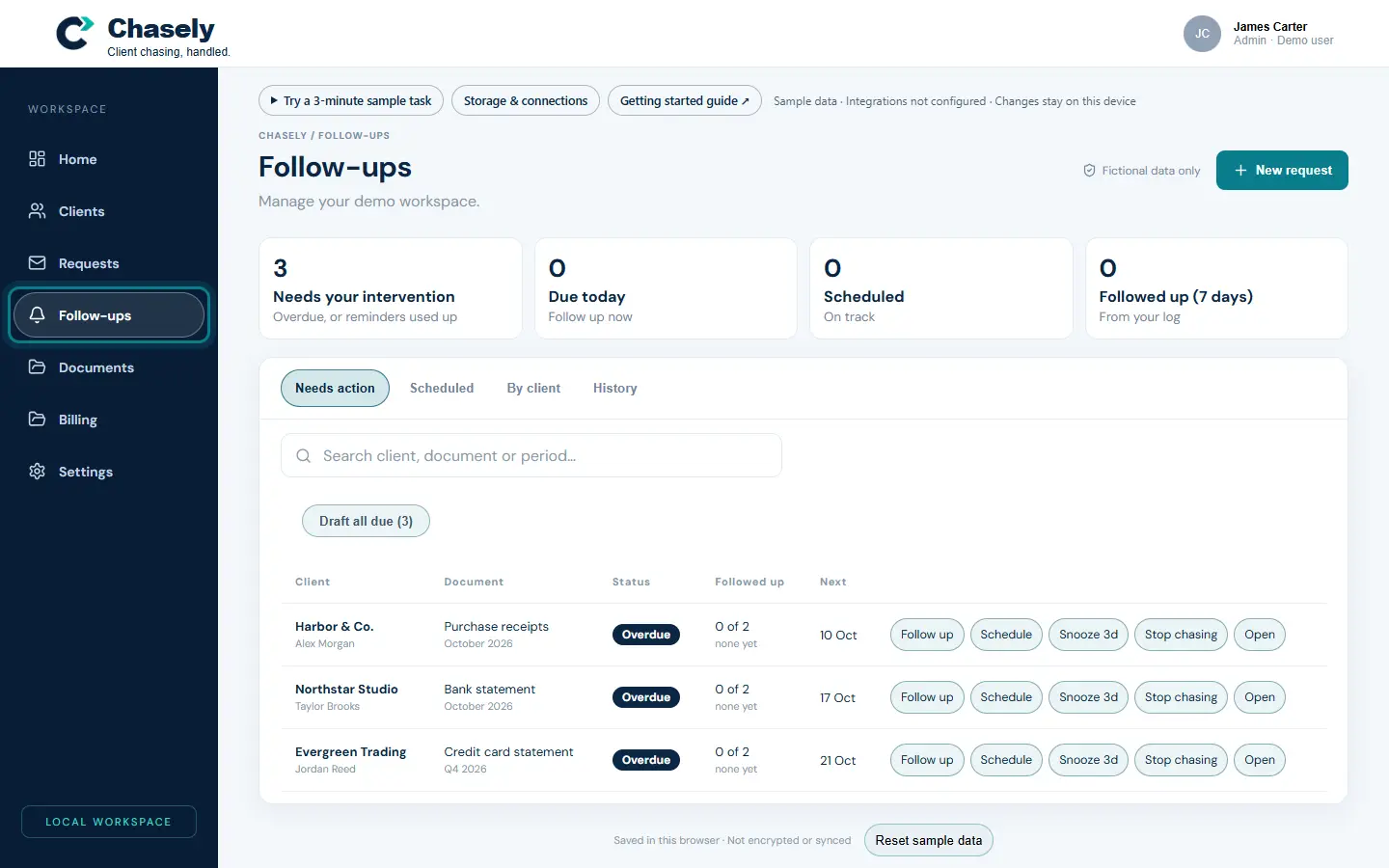
The ring shows where to look or what to press. Step 6: Review what arrives
Open Documents. Each document shows its status and a check result with its reasoning, so you can accept it or ask for a better copy.
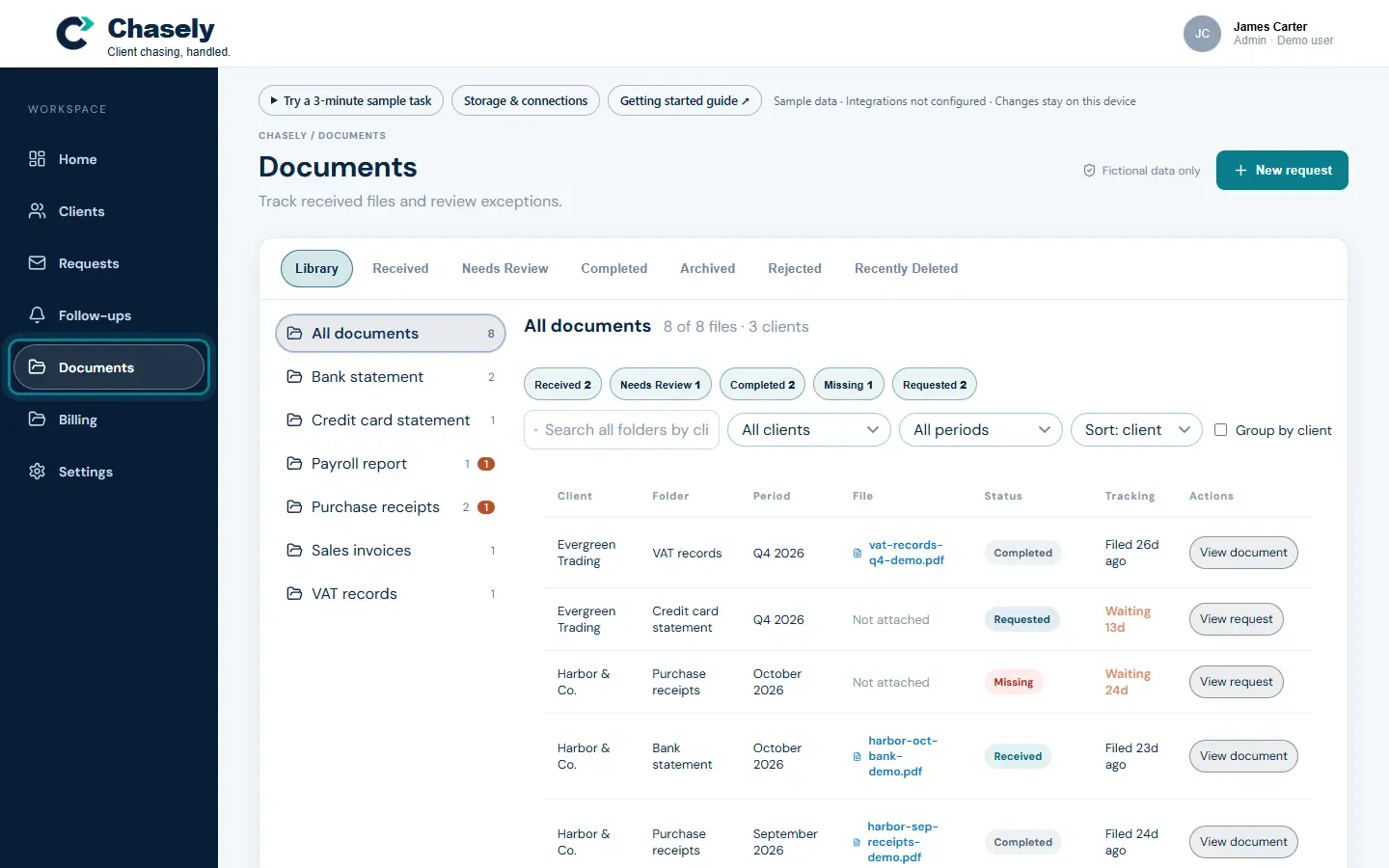
The ring shows where to look or what to press.
What to notice
Each client has one page with everything about them, and every document check explains why it passed or failed.
Other guides
The same steps-and-screenshots format for every Pavilion Arc product.