 Pavilion Arc
Getting started · Export documents
Shipdesk
One order. Documents that match.
Shipdesk helps an exporter prepare the commercial invoice and packing list from one order, check supplier documents for mistakes, and follow a shipment until it is collected.
How the work flows
Every task in Shipdesk moves through the same stages.
- 1Order
- 2Documents
- 3Handover
- 4Collection
Before you begin
Open Shipdesk, press Open workspace, and keep this page open beside it.
- A computerShipdesk works best on a larger screen.
- The sample filesA matching invoice, packing list and proof of collection.
- About 10 minutesEvery shipment is made up.
Step by step
Follow the steps in order. Each one sets up the next. Select a screenshot to see it full size.
Step 1: Open the shipment file
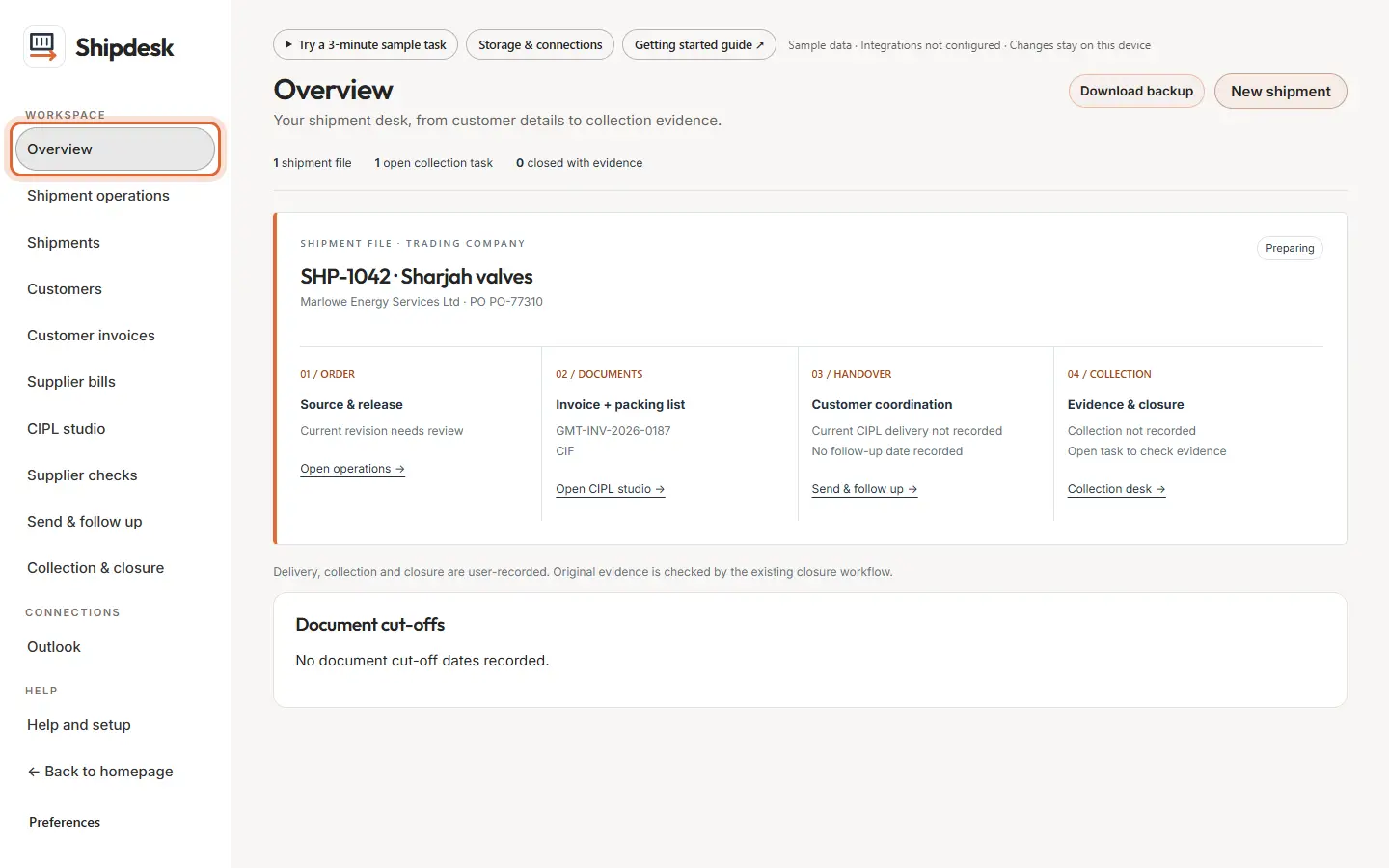
Overview shows shipment SHP-1042 with its four stages: order, documents, handover and collection. Each stage links to its screen.
The ring shows where to look or what to press. Step 2: Check supplier documents
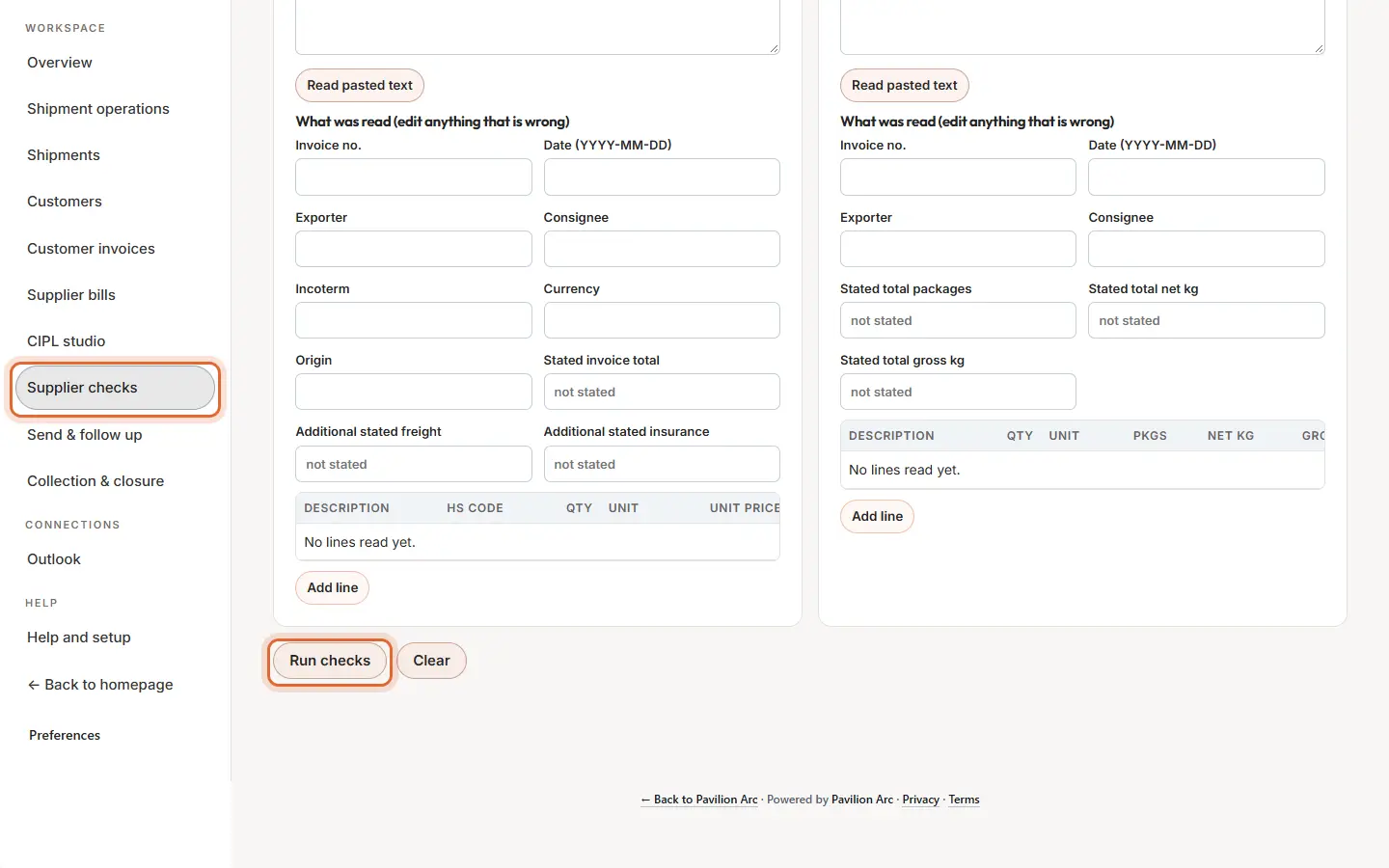
Open Supplier checks, upload the sample commercial invoice and packing list, and press Run checks. The matching pair shows no mismatches. Then press Load sample with errors to see what a problem looks like.
The ring shows where to look or what to press. Step 3: Build matching documents
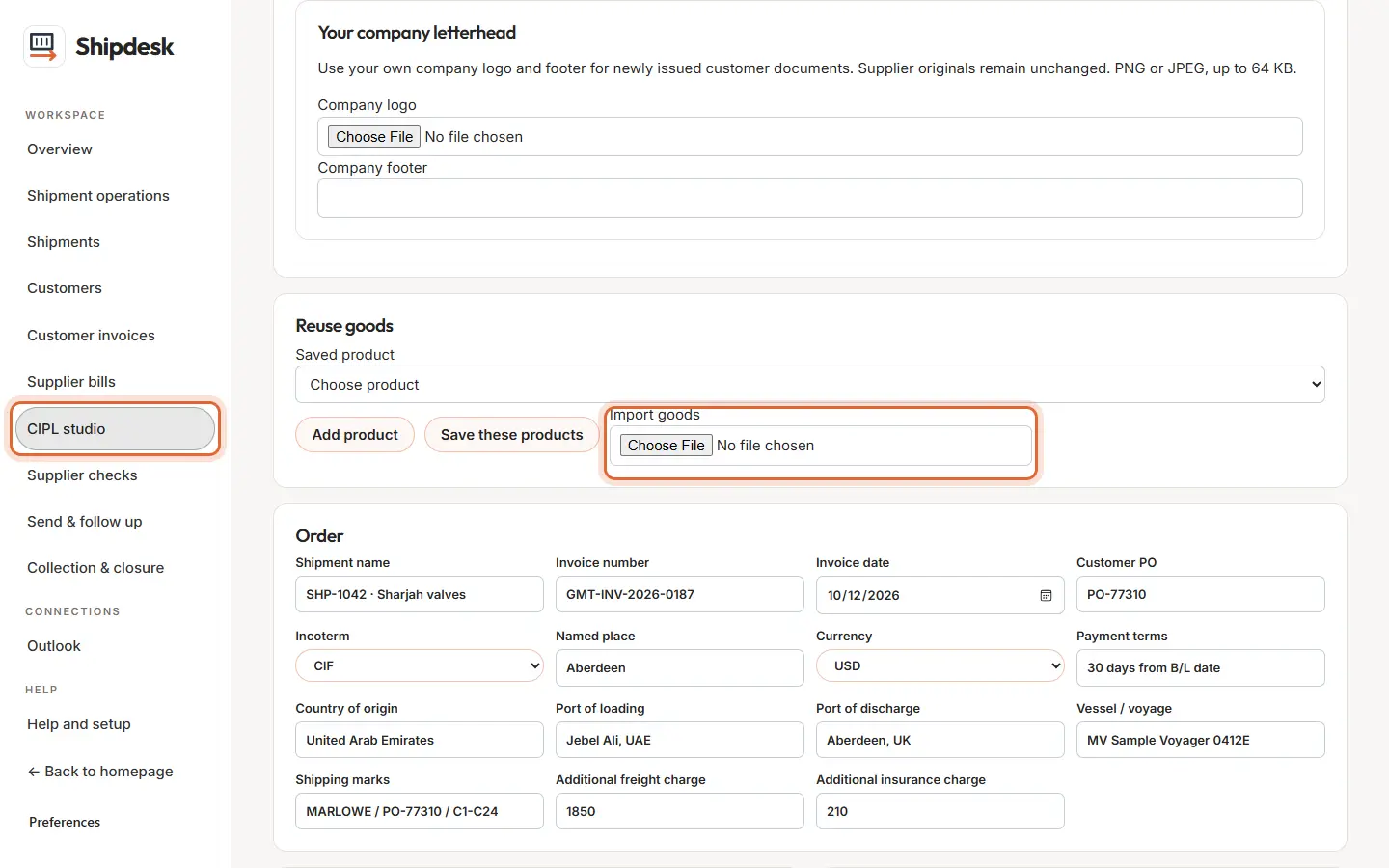
Open CIPL studio, choose Import goods and pick
03_invoice-lines.csv. Confirm, and the invoice and packing list are built from the same lines.Because both come from one list, quantities, weights and totals always agree.
The ring shows where to look or what to press. Step 4: Hand over to the customer
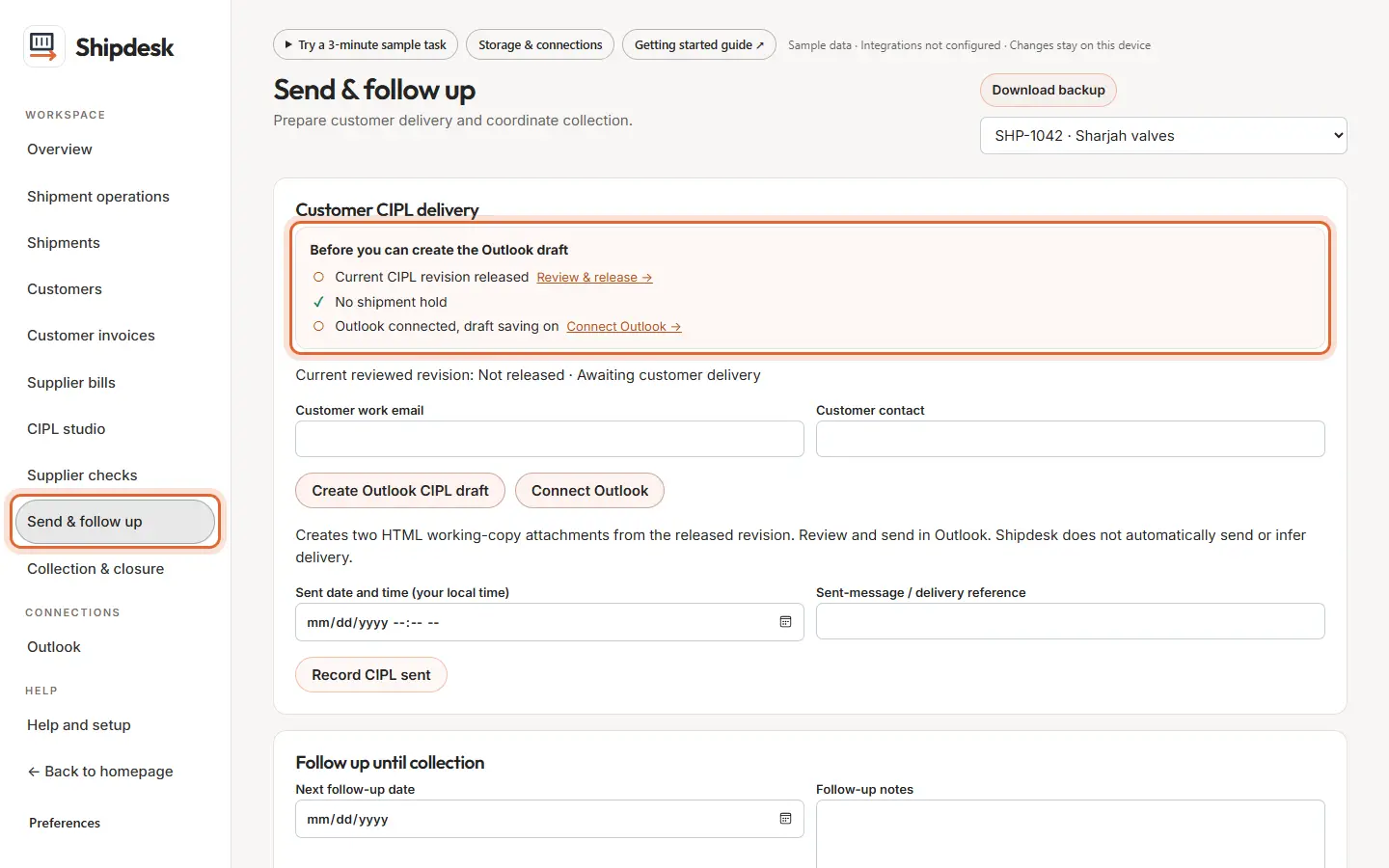
Open Send & follow up. The checklist at the top shows what is needed before the email draft can be created, each with a link to fix it.
The ring shows where to look or what to press. Step 5: Close with proof
Open Collection & closure, upload
05_bill-of-lading-proof.pdfas the collection proof, and review what is needed to close the shipment.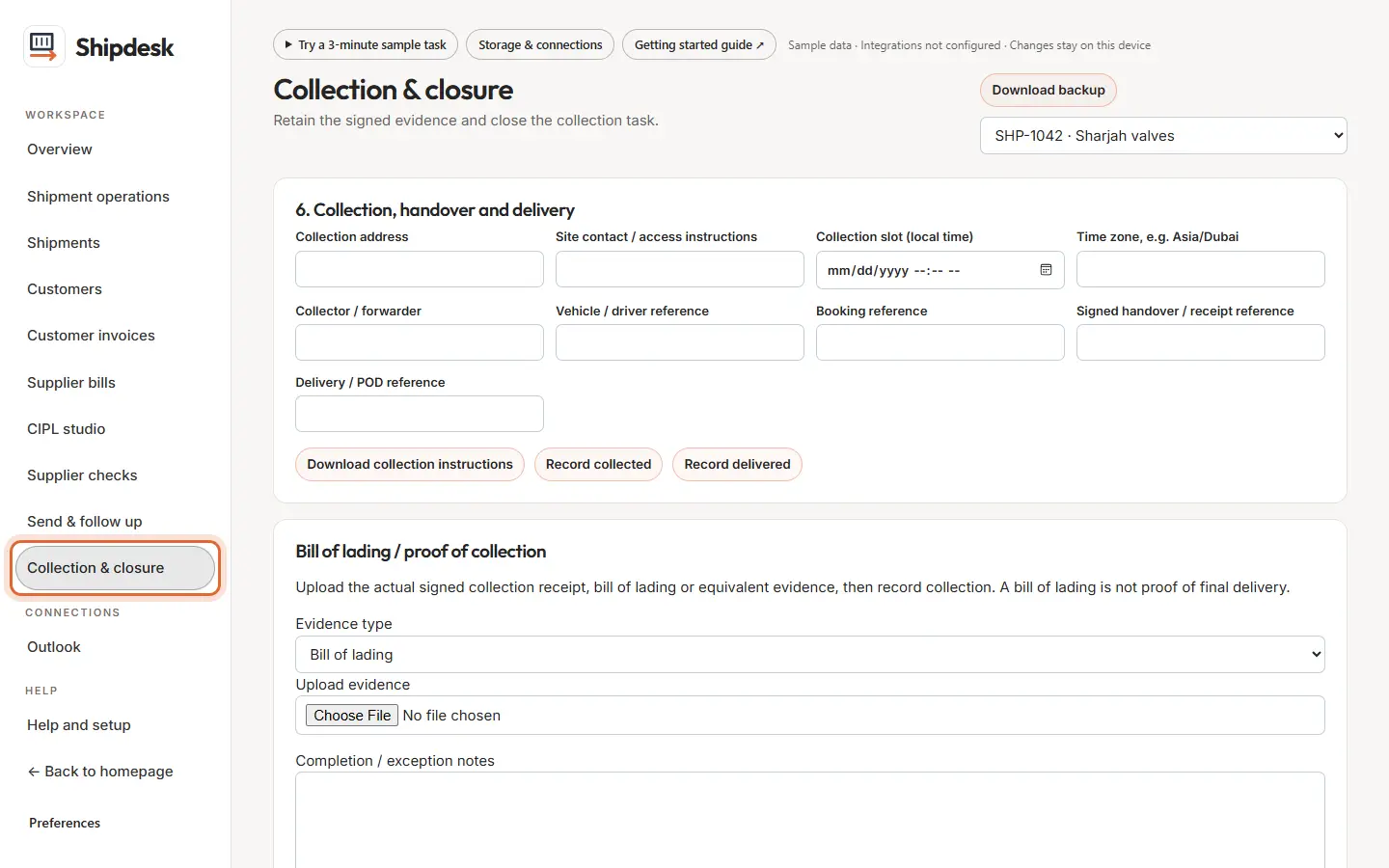
The ring shows where to look or what to press.
What to notice
Your invoice and packing list are built from the same lines, so they cannot disagree.
Other guides
The same steps-and-screenshots format for every Pavilion Arc product.