 Pavilion Arc
Getting started · Supplier registration
FormFlow
Stop filling in the same supplier forms.
FormFlow helps a supplier answer buyer registration forms and questionnaires. Company details, answers and certificates are saved once and reused every time.
How the work flows
Every task in FormFlow moves through the same stages.
- 1Profile
- 2Answers
- 3Questionnaire
- 4Documents
- 5Submit
Before you begin
Open FormFlow, press Open workspace, and keep this page open beside it.
- A computer or phoneAny up-to-date browser works.
- The sample filesA buyer questionnaire, saved answers and two certificates.
- About 12 minutesUse a made-up company.
Step by step
Follow the steps in order. Each one sets up the next. Select a screenshot to see it full size.
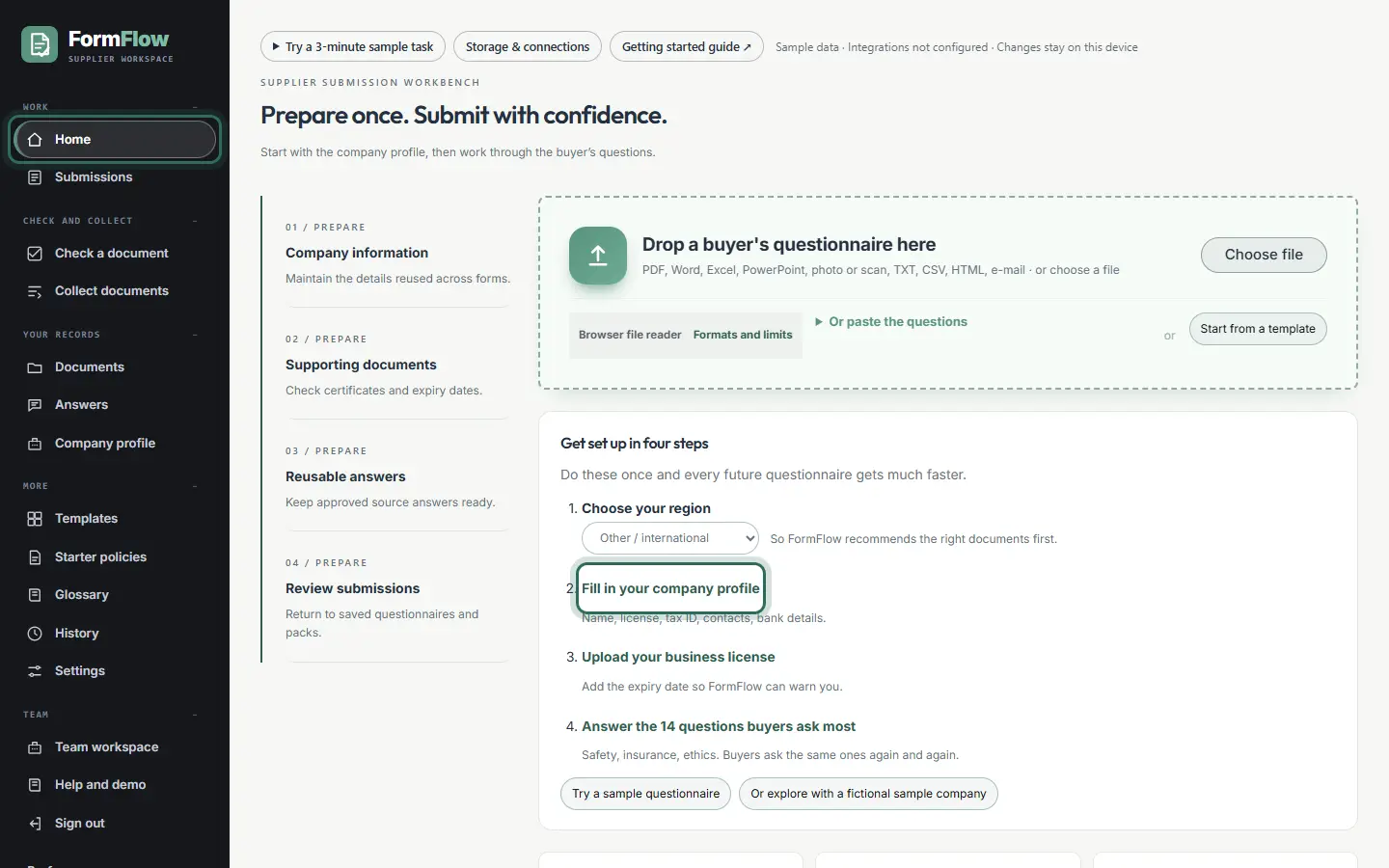
Step 1: Follow the setup steps
Home shows four setup steps and your progress. Press Fill in your company profile to begin.
The ring shows where to look or what to press. Step 2: Fill in your company profile
Enter made-up details: company name, tax ID, contact, phone, email, year established and number of employees. Every questionnaire reuses them.
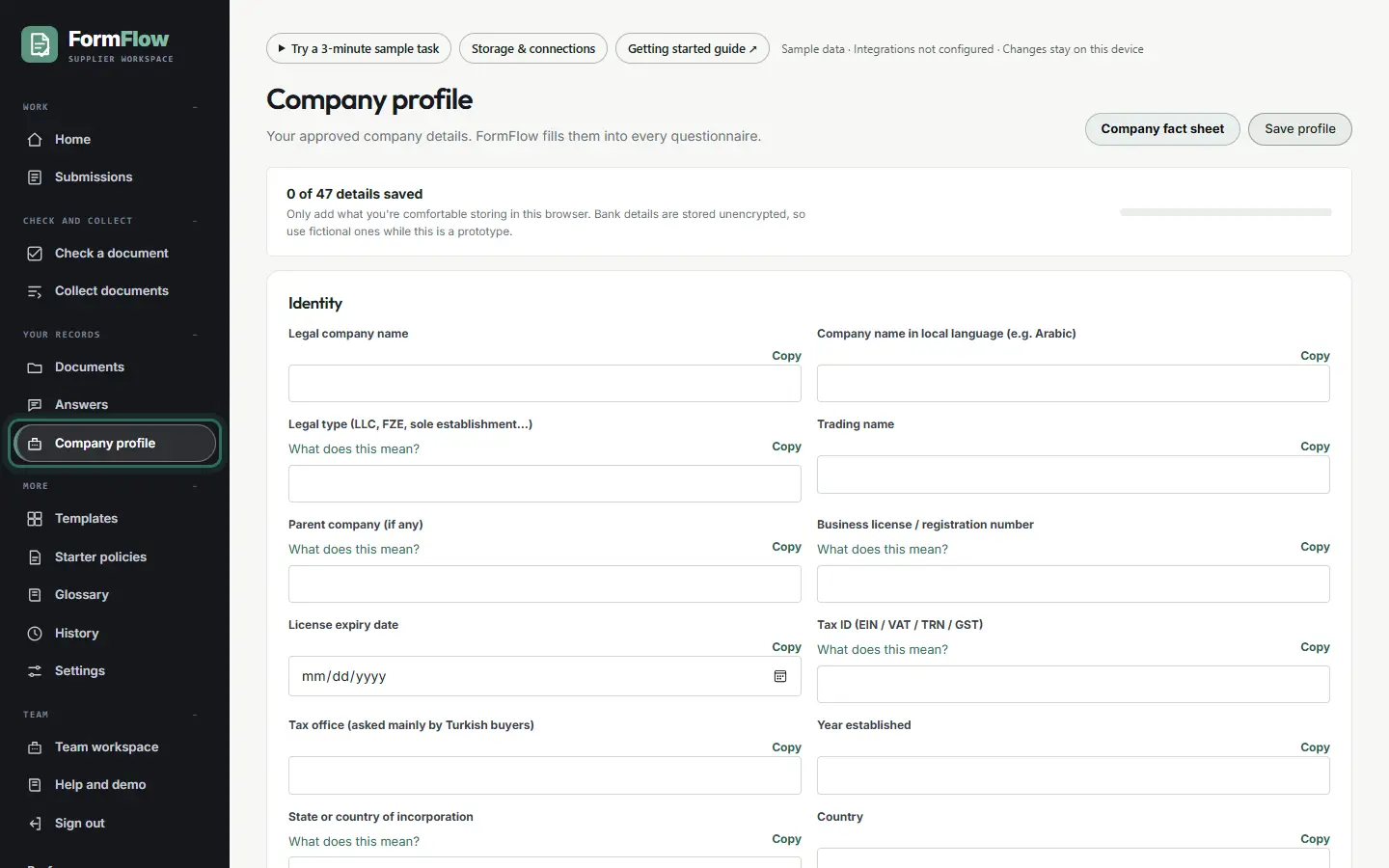
The ring shows where to look or what to press. Step 3: Import saved answers
Open Answers and press Import answers (CSV) with
02_answer-library.csv. These are your approved answers to common questions.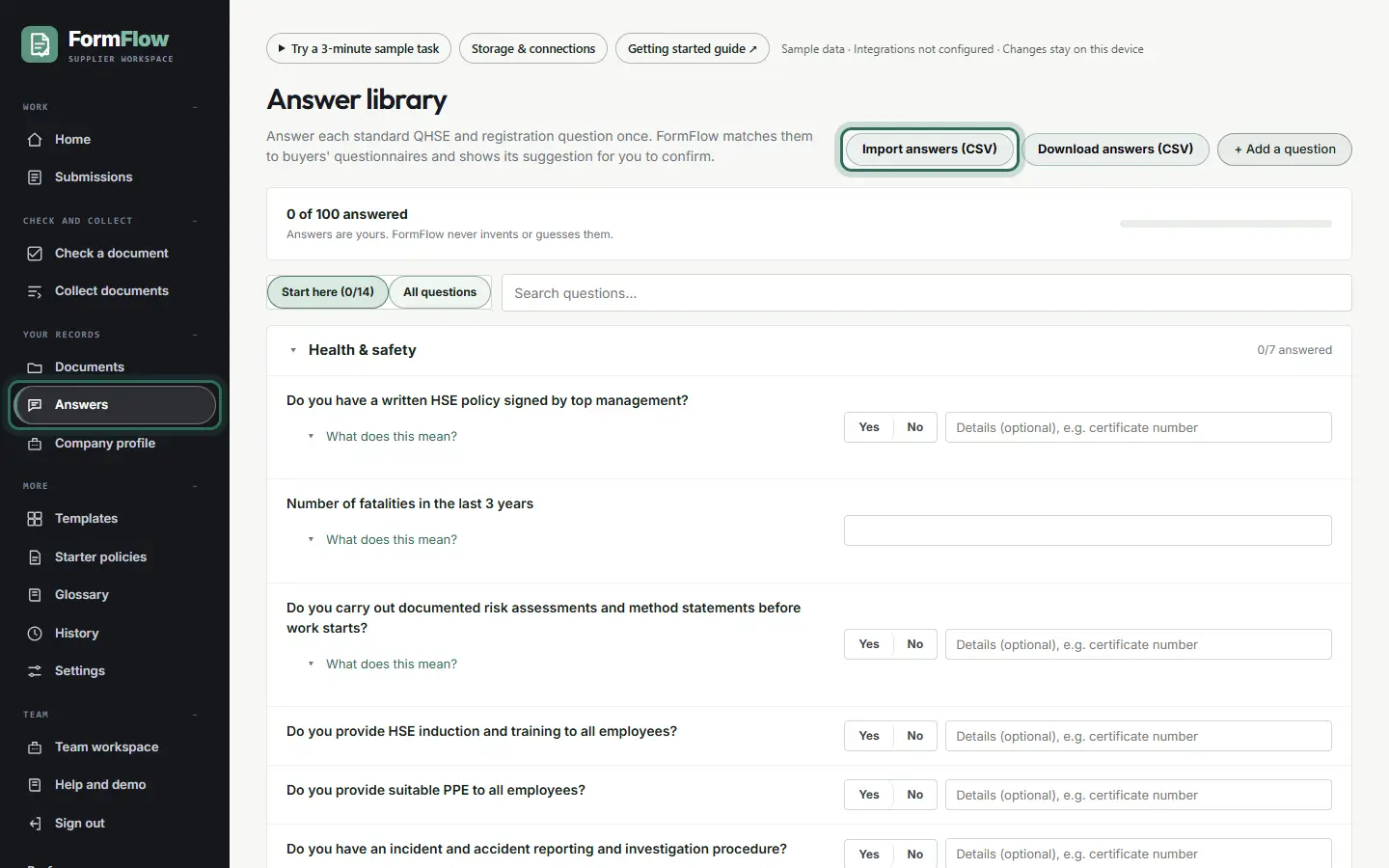
The ring shows where to look or what to press. Step 4: Answer a questionnaire
On Home, upload
01_buyer-questionnaire.txt, or press Try a sample questionnaire. FormFlow fills its 14 questions from your profile and saved answers. Check them and press Create submission.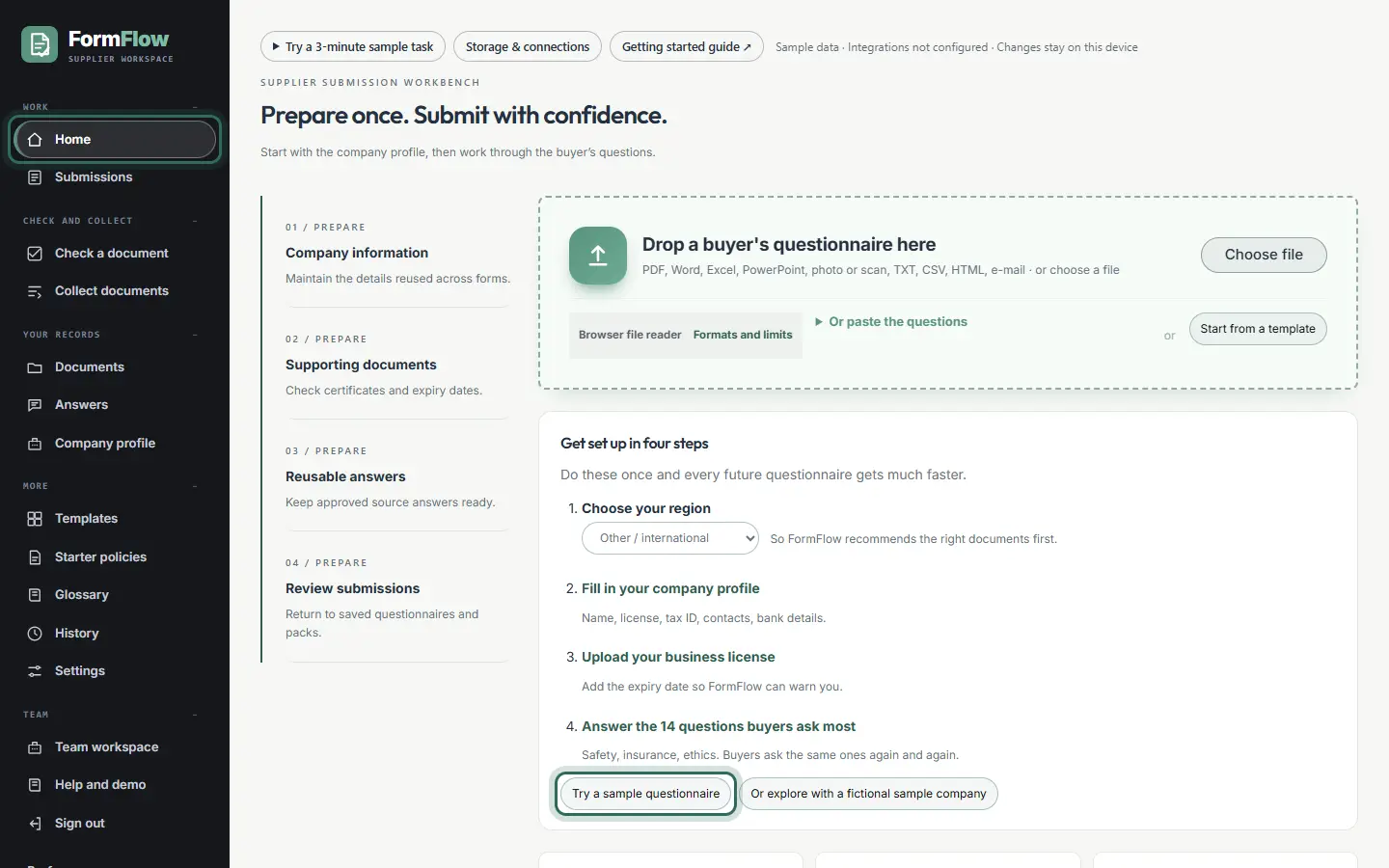
The ring shows where to look or what to press. Step 5: Add your documents
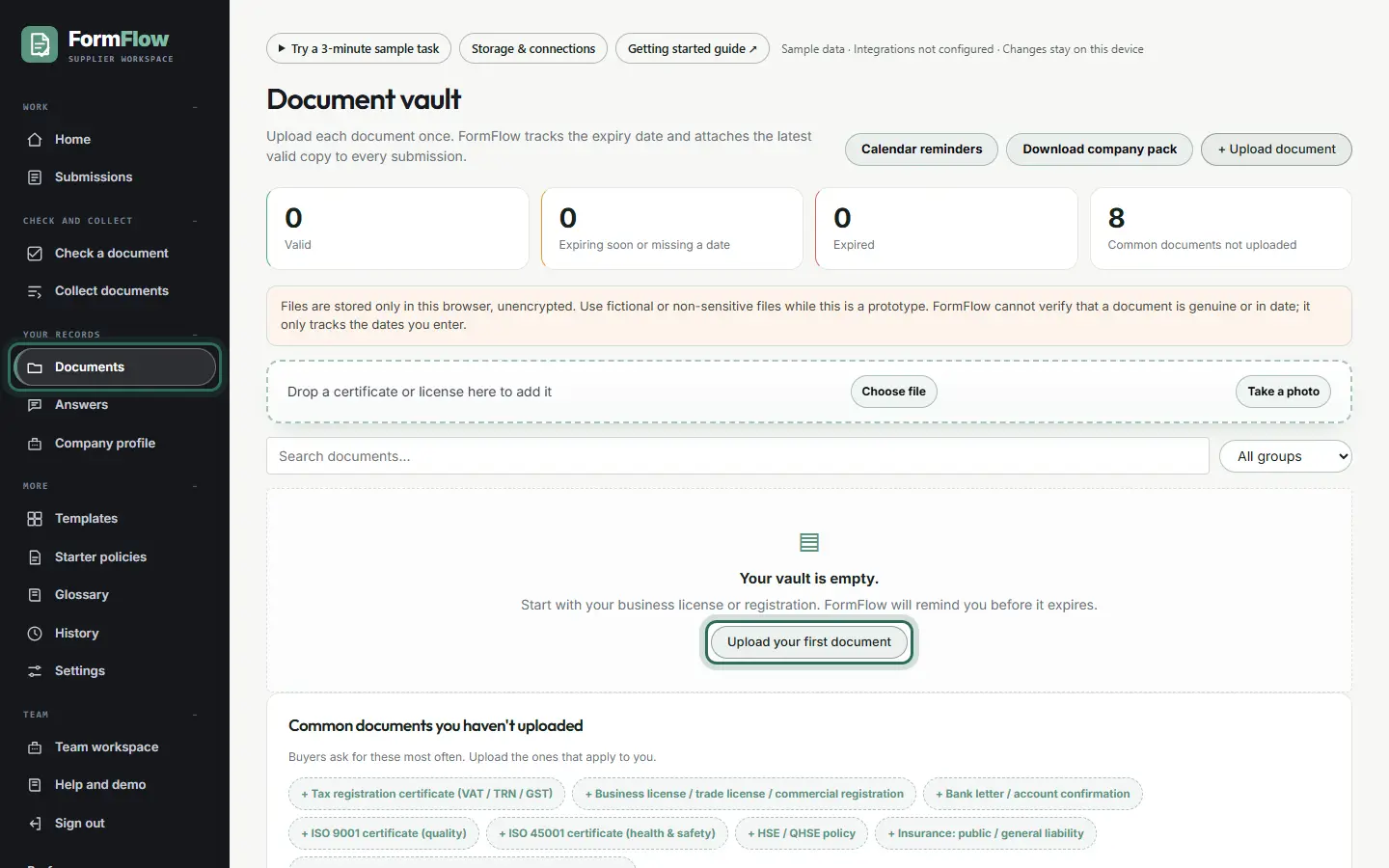
Open Documents and upload the sample insurance certificate and W-9 together. FormFlow recognises each one and suggests the insurance expiry date.
Expiry dates are tracked, so you are warned before a certificate runs out.
The ring shows where to look or what to press. Step 6: Send the submission pack
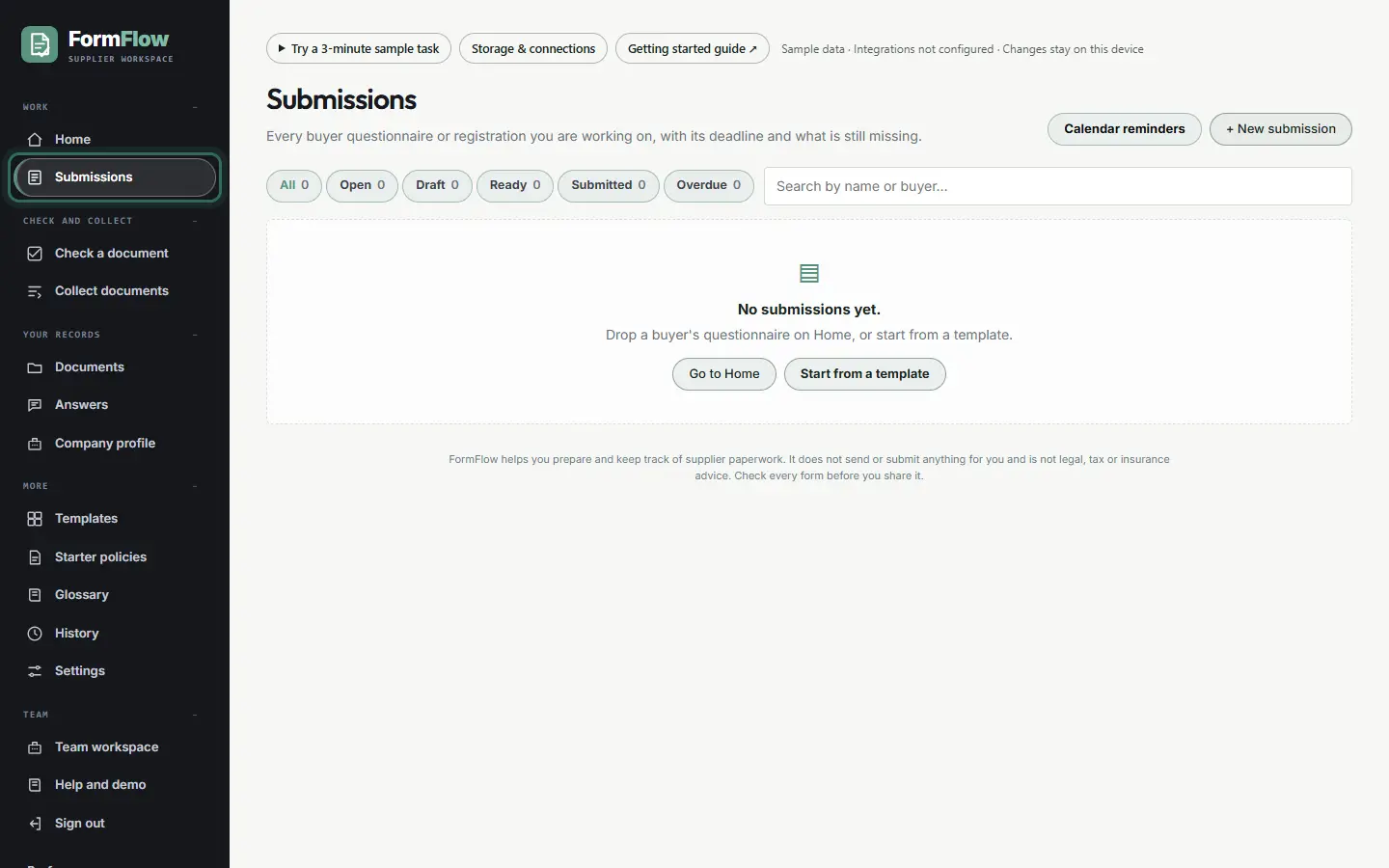
Submissions shows each questionnaire, what is still missing, and the pack ready to send to the buyer.
The ring shows where to look or what to press.
What to notice
You enter your company details once, and every questionnaire after that is mostly filled in for you.
Other guides
The same steps-and-screenshots format for every Pavilion Arc product.